Tutorial for using image_modifier package
In this tutorial, we will explore how to utilize the image_modifier package in Python. This package comprises four key functions:
rotate_90- Rotates an image by 90 degrees.add_frame- Adds a frame to an image.select_channel- Selects a specific color channel from an image.slice_image- Slices an image into smaller segments. Examples demonstrating the use of each function are provided.
Startup commands
Importing libraries
Before we begin with the package and the examples, we would have to import some libraries to help load an image and store it in an object. Some of the libraries would also be useful to perform array manipulations. We would be using Image function from the Pillow library to load an image and the numpy library to convert the image to an array. The matplotlib.pyplot library is used to show the image and the modifications performed on the image.
from PIL import Image
import numpy as np
import matplotlib.pyplot as plt
Importing JPEG image
Our ‘image_modifier’ package is designed for JPEG image modifications. To begin, let’s import a test image to experiment with. Below is an example code snippet that demonstrates how to load an image into a numpy array. It’s important to note that the current version of the ‘image_modifier’ package supports only JPEG images. For demonstration purposes, we’ll use the ‘UBC’ logo image, employing matplotlib functions in our example.
image = Image.open("ubc.jpeg")  # Example, can be replaced with other JPEG images
image_array = np.array(image)  # Load the image into numpy array
Show the image using the plt.imshow command:
plt.imshow(image_array) # Show the image
<matplotlib.image.AxesImage at 0x7f9830ed5a30>

Image data is being stored as numpy array as shown below:
type(image_array)
numpy.ndarray
Exporting JPEG image
We can save the image using the plt.imsave command:
plt.imsave("ubc_2.jpeg", image_array) # Save to the same folder where the file is located
rotate_90 - Rotating the image by 90 degrees
The rotate_90 is designed to rotate the image by 90 degree clockwise. The following example would help you understand how the rotate_90 function works. First, let us import the function from the package. Use the following command will allow you to do so.
from image_modifier.rotate_90 import rotate_90
rotated_90_degree = rotate_90(image_array)
Now let us use the plt.imshow command to view the rotated image.
plt.imshow(rotated_90_degree)
<matplotlib.image.AxesImage at 0x7f9830ea8a30>

As we can see that the above image has been rotated by 90 degrees. This function would be useful to rotate the image that has been stored at incorrect angles or if someone wants to rotate an image by 90, 180 or 270 degrees. Let us try to rotate the above image again to have 180 degree rotation.
rotated_180_degree = rotate_90(rotated_90_degree)
plt.imshow(rotated_180_degree)
<matplotlib.image.AxesImage at 0x7f98304aff10>
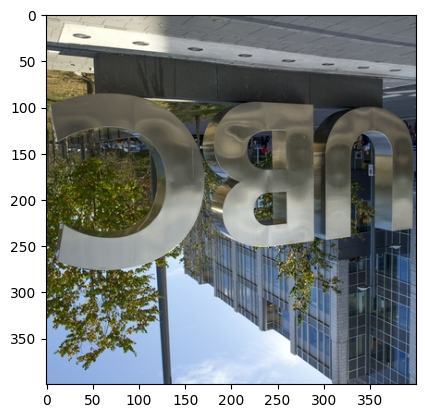
And if we do it again, we would get an image which is rotated by 270 degrees. Let us try it out.
rotated_270_degree = rotate_90(rotated_180_degree)
plt.imshow(rotated_270_degree)
<matplotlib.image.AxesImage at 0x7f98304583a0>

To save any of the rotated image, you may use the following command - plt.imsave(“<name_of_the_file>”, image_object))
plt.imsave("rotated_270_degree.jpeg", rotated_270_degree)
add_frame - Adding frame to image
The add_frame is designed to add a frame to the image, the color and the size of the frame can be customized. The following example would help you understand how the add_frame function works. First, let us import the function from the package. Use the following command will allow you to do so.
from image_modifier.add_frame import add_frame
Adding colorful frame to image
Imagine you’re creating a digital photo album from your recent vacation. You want to make each photo stand out by adding custom frames that match the theme of the location where each photo was taken. For beach photos, you might want a blue frame to match the ocean; for forest shots, a green frame might be more suitable. Our add_frame function allows you to add these personalized touches easily, enhancing the overall look of your digital album.
Use the add_frame function to add a blue frame to your sample photo. Let’s overlay the frame without altering the original image size.
blue_framed_image = add_frame(image_array, border_size=60, color_name='blue', overlay=True)
plt.imshow(blue_framed_image)
<matplotlib.image.AxesImage at 0x7f98303c79a0>

By specifying border_size and color_name, you customize the frame’s thickness and color. There are six predefined color choices available: ‘red’, ‘yellow’, ‘green’, ‘blue’, ‘black’ and ‘white’. The overlay=True parameter ensures the original image size remains unchanged, overlaying the frame on the image’s edges.
Advanced customization with add_frame
After enhancing your digital photo album with basic colored frames, you might want to further customize your images with specific colors that aren’t predefined. Additionally, you may want to add frames without overlaying them on the original image, especially when you want to preserve every detail of the photo.
Suppose you have a special photo in your album, and you want to add a pink frame to it, which is not a predefined color in our function. You also want to ensure that the entire photo is visible, with the frame added around it, preserving its original content.
First, define the pink color as an RGB tuple:
pink_color = (255, 192, 203) # RGB for pink
Then, use the add_frame function with overlay set to False. This will add padding to the image before applying the pink frame, ensuring the original photo remains fully visible:
pink_framed_image = add_frame(image_array, border_size=30, color_name=pink_color, overlay=False)
plt.imshow(pink_framed_image)
<matplotlib.image.AxesImage at 0x7f98303641f0>

To save any of the framed image, you may use the following command - plt.imsave(“”, image_object))
select_channel - Selecting RGB channel
The select_channel function is designed to modify an RGB image by either isolating or removing a specific color channel. RGB images are composed of three color channels: red (r), green (g), and blue (b), each contributing to the final color composition in the image. By adjusting these channels individually, users can isolate specific features, enhance certain colors, or prepare images for complex processing tasks. This capability is essential for tasks that require detailed color analysis, such as feature detection, image filtering, or simply for artistic effect.
The function offers two modes of operation through the without parameter:
Isolation: When without is set to False (the default), the specified channel (r, g, or b) is isolated. This means that the selected channel retains its values while the other two channels are set to zero, resulting in an image composed solely of shades of the chosen color.
Removal: When without is set to True, the function removes the specified channel from the image. The removed channel’s values are set to zero, allowing the colors from the remaining channels to dominate the image.
from image_modifier.select_channel import select_channel
Isolating Color Channels
Isolating a color channel involves retaining the pixel values in the specified channel while setting the other channels to zero. This process highlights features in an image based on the color of the isolated channel. In this example, we show how to isolate the red channel. To focus on the red components of an image, the select_channel function is called with r as the channel argument and without specifying the without parameter, as it defaults to False.
red_image = select_channel(image_array, 'r')
plt.imshow(red_image)
plt.axis('off')
plt.show()

Removing Color Channels
Removing a color channel involves setting the target channel to zero, effectively eliminating that color’s contribution to the image. In this example, we show how to remove the red channel. To remove the red channel, the without parameter is set to True. This operation suppresses the red tones in the image, giving it a cyan tint (green and blue combined).
removed_red = select_channel(image_array, 'r', without = True)
plt.imshow(removed_red)
plt.axis('off')
plt.show()

The select_channel function provides a straightforward and efficient way to either emphasize or diminish specific color information within an image. By isolating or removing color channels, one can gain better insights into the color composition and emphasize or de-emphasize certain elements of an image based on color characteristics
slice_image - Slicing image
The slice_image function is specifically crafted to divide an image into smaller slices according to the given horizontal and vertical divisions. To better understand how the slice_image function operates, let’s look at an example. First, we need to import the function from the package. You can do this using the following command:
from image_modifier.slice_image import slice_image
Slicing image
Next, we will slice the example image into 6 slices, dividing it into 2 horizontal and 3 vertical slices. (Note: The slices will be displayed automatically; there’s no need to use plt.imshow to show the images.)
slices = slice_image(image_array, horizontal_slices=2, vertical_slices=3) # The function returns np.arrays which represent slices

Extracting a single slice
To extract a single slice, use the slices obtained from the function above. slices is a list of numpy arrays, with each array representing a distinct slice. You can access a specific slice using the list indices slices[horizontal_index][vertical_index]. For instance, slices[0][0] will retrieve the first slice “Slice 1”.
first_slice = slices[0][0]
plt.imshow(first_slice)
<matplotlib.image.AxesImage at 0x7f98302c7850>

Editing extracted slice
You can further edit this slice with the functions in this package: rotate_90, add_frame, select_channel, slice_image (remember to import other functions first if you haven’t).
Editing the Extracted Slice
You can further modify the extracted slice using various functions available in this package. Before proceeding, ensure that these functions are imported if they haven’t been already.
# from image_modifier.rotate_90 import rotate_90
# from image_modifier.add_frame import add_frame
# from image_modifier.select_channel import select_channel
first_slice = rotate_90(first_slice)  # Rotate 90 degree
first_slice = add_frame(first_slice, border_size=5, color_name='blue', overlay=True)  # Add a red frame
first_slice = select_channel(first_slice, 'r', without = True)  # Isolate the red channel
plt.imshow(first_slice)
<matplotlib.image.AxesImage at 0x7f9830078f40>

Appendix
This section is intended to showcase planned future features of our package to incorperate supports for PNG and Grayscale pictures. Support for PNG and Grayscale pictures will gradually roll out in future updates
PNG File Also Supported (add_frame and slice_image at this moment)
# Loading another sample picture in PNG format
image_png = Image.open("logo.png")  # Example, can be replaced with other PNG images
image_png_array = np.array(image_png)  # Load the image into numpy array
purple_color = (160, 32, 240) # Another custom defined color
# Demonstrating PNG compatibility of add_frame
neon_green_framed_png_image = add_frame(image_png_array, border_size=30, color_name=purple_color, overlay=False)
plt.imshow(neon_green_framed_png_image)
<matplotlib.image.AxesImage at 0x7f9822fd7eb0>

# Demonstrating PNG compatibility of slice_image
slices_png = slice_image(image_png_array, horizontal_slices=2, vertical_slices=3)

Rainbow Made Simple
# List for colors of a rainbow

rainbow_colors = [
    (255, 0, 0),     # Red
    (255, 127, 0),   # Orange
    (255, 255, 0),   # Yellow
    (0, 255, 0),     # Green
    (0, 0, 255),     # Blue
    (75, 0, 130),    # Indigo
    (148, 0, 211)    # Violet
]
# Repeatedly call add_frame with overlay=False to

rainbow_frame = image_array

for color in rainbow_colors:
    rainbow_frame = add_frame(rainbow_frame, border_size=30, color_name=color, overlay=False)

plt.figure(figsize=(10, 8))
plt.imshow(rainbow_frame)
<matplotlib.image.AxesImage at 0x7f9822dd6b20>

Have fun with image_modifier!